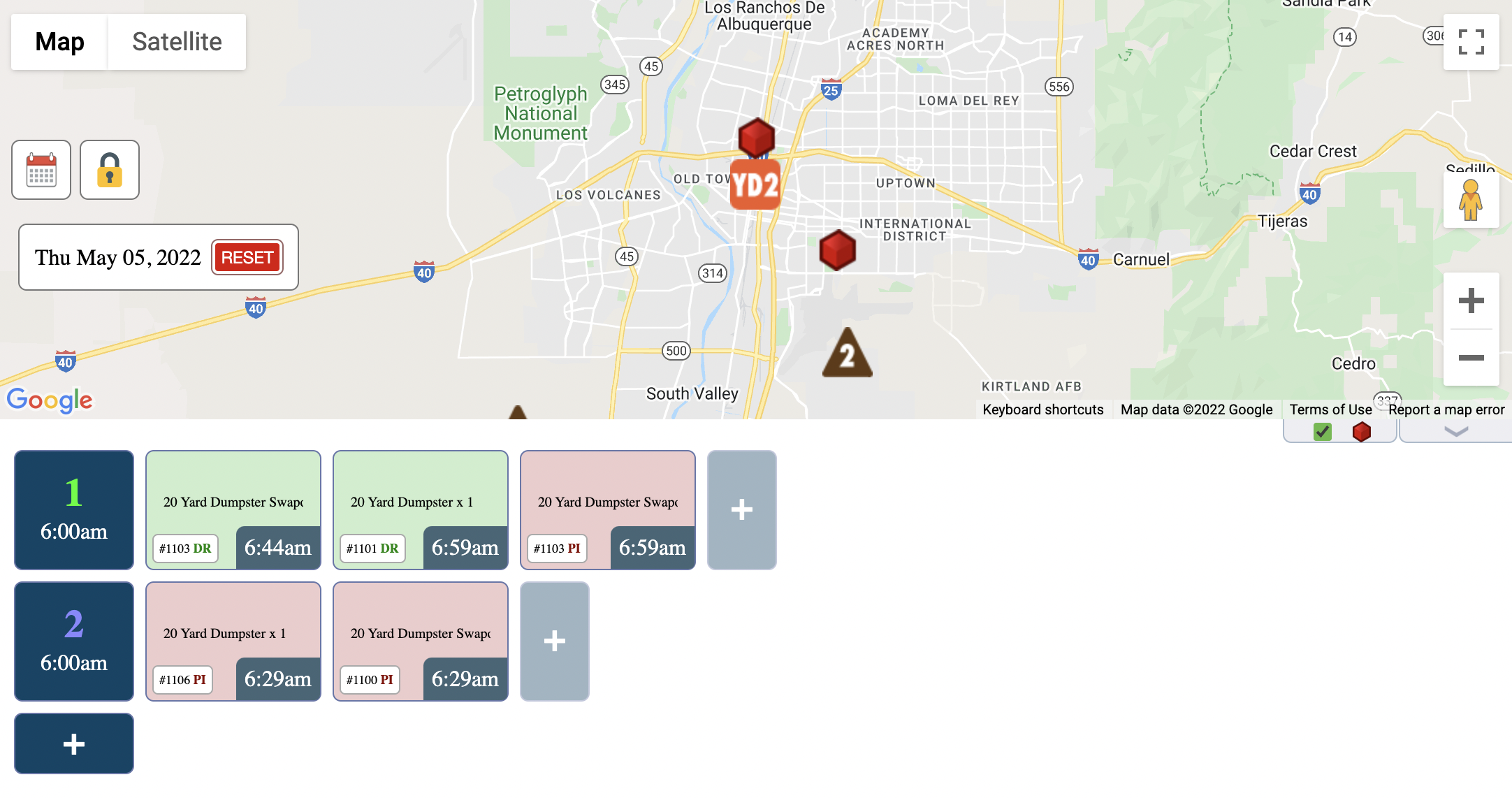
Navigate to the "Delivery" tab (or click the Google Maps icon on "Dispatch" for the current date) and click a day to open up the Routing & Delivery screen. The left-side numbers indicate Truck 1 and Truck 2 in the screenshot below. Click on these numbers to rename the truck, change the start time, change the start location, or assign a driver and/or assistant.
Note: To configure the route, click the lock icon to unlock the screen, and drag-and-drop orders in the proper sequence.
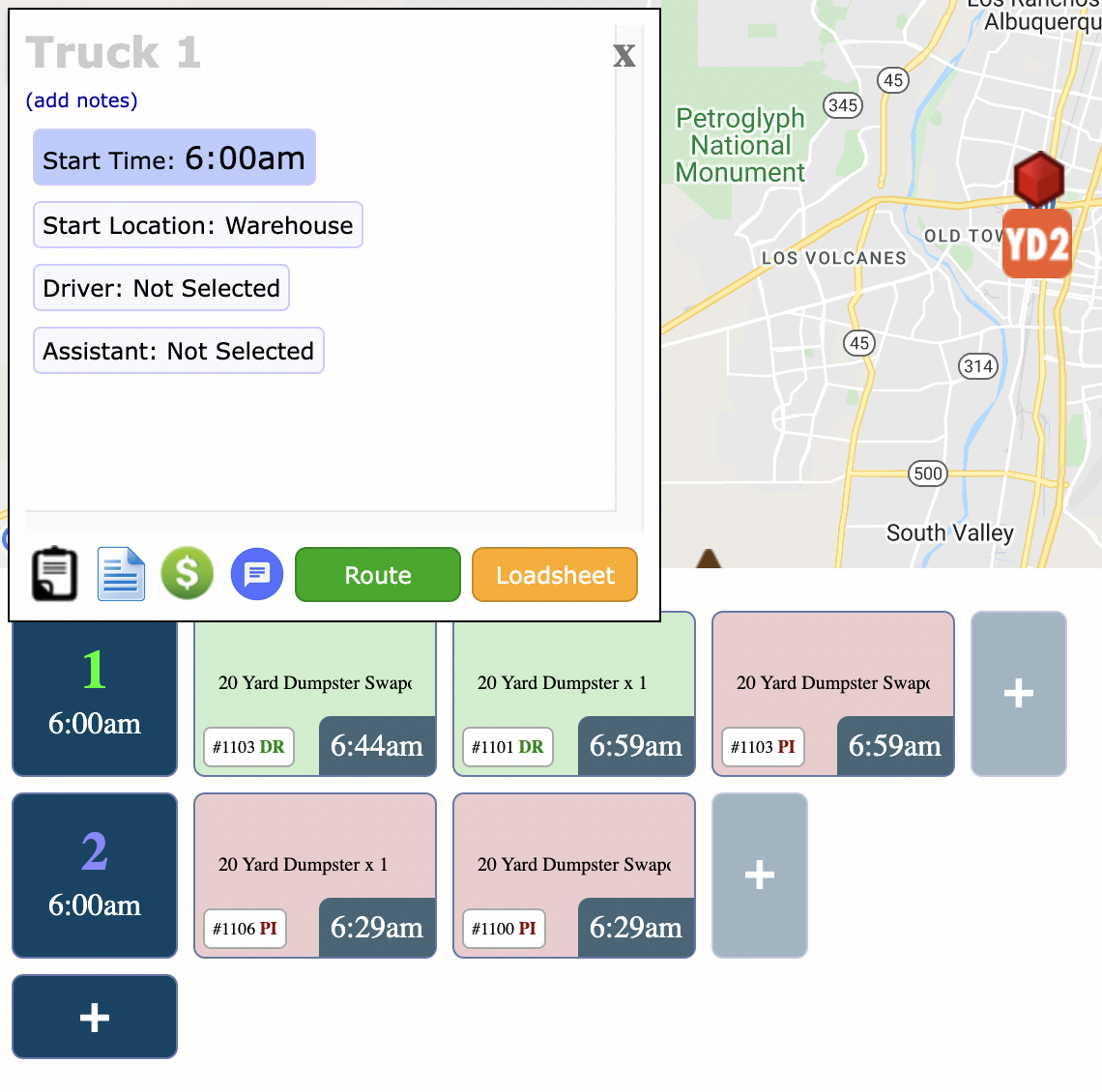
After clicking the Truck number, this pop-up will appear.
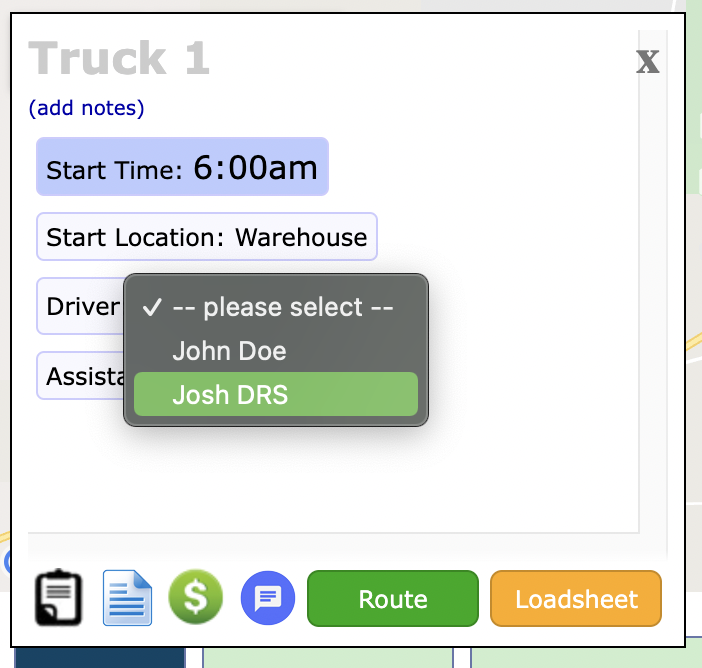
Select the appropriate Driver from the list, which comes from Admin > General Config > Users:
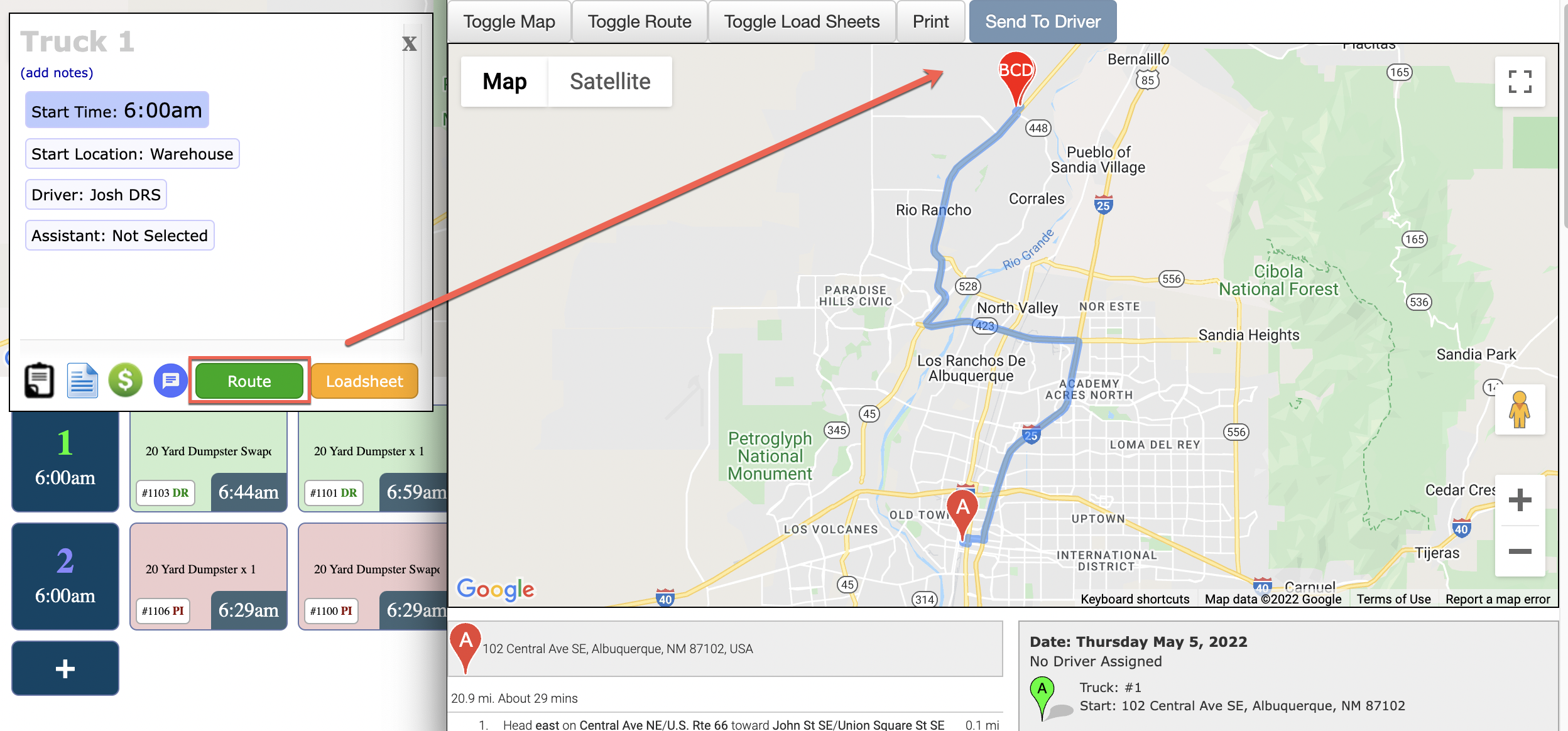
Once selected, the route will automatically appear in the Driver App for that user/driver. If you do not see the route, you can click the green "Route" button followed by "Send to Driver" to force it through. This will also send a text message to the driver (if they have a phone number and mobile carrier) with a link to the turn-by-turn directions shown below.