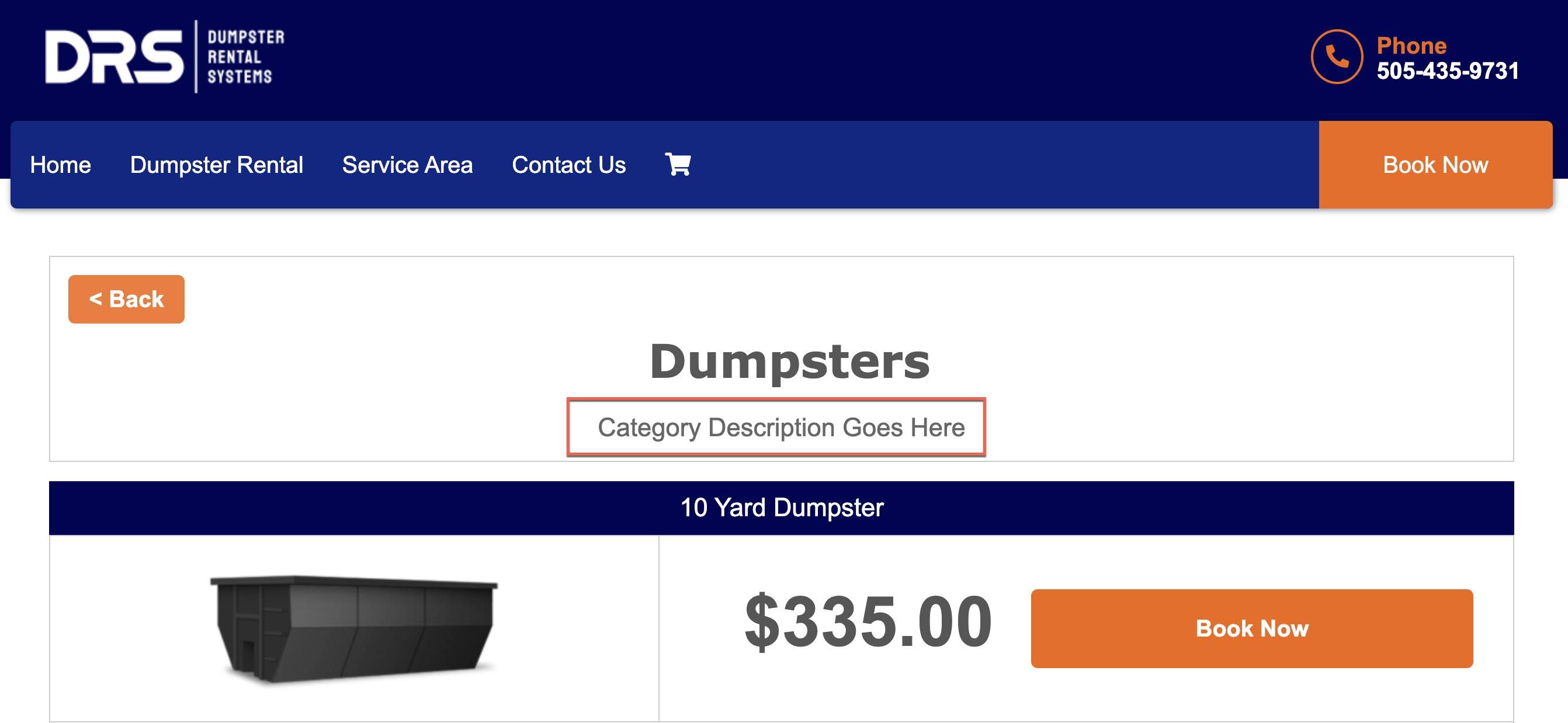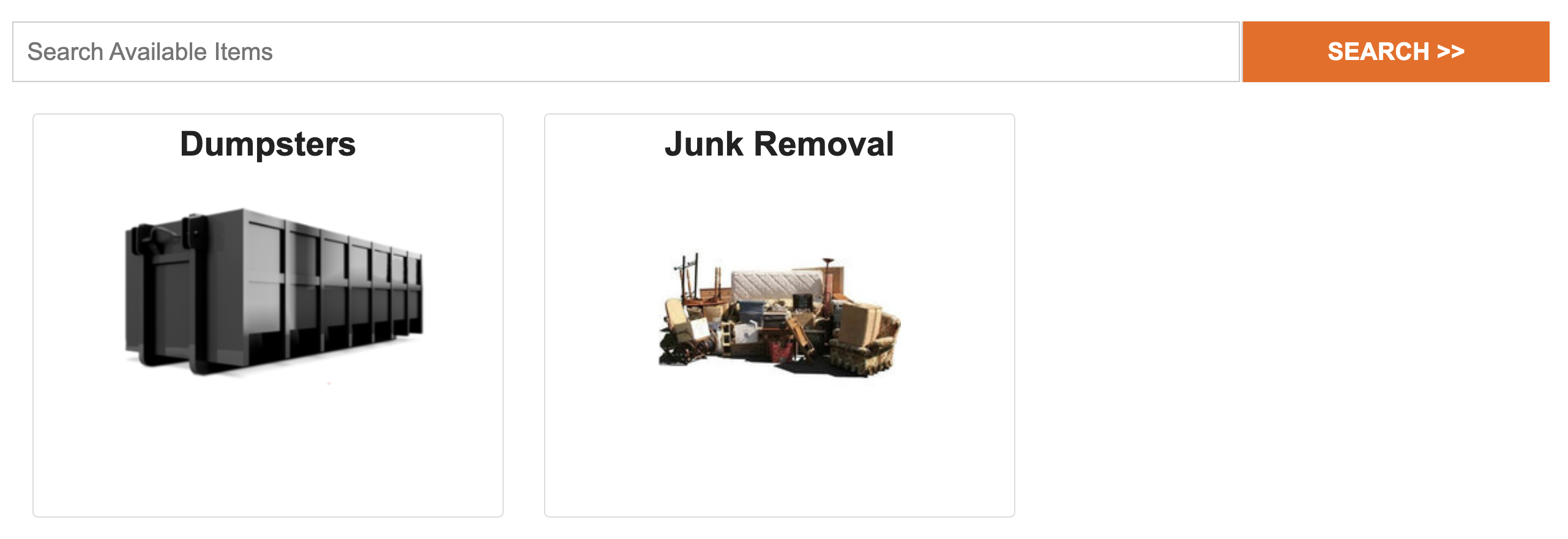
Your online website comes with a Store composed of categories and items. Categories help group similar items together for ease of ordering. In addition, categories can be assigned a "Parent Category" to create hierarchy in the online store.

Editing Inventory Categories
Navigate to Admin > Products > Categories and click on a category to begin editing your inventory.
Warning: Your navigation bar is preconfigured with the correct links to access each category. Changing the name of a category will change the link. Categories and items in the Control Panel automatically create a webpage based on the name. We recommend choosing names carefully to help your Search Engine Optimization (SEO). Spaces are automatically converted to underscores:
- Categories create the path: “/category/category_name/”
- Items create the path: “/items/item_name/”
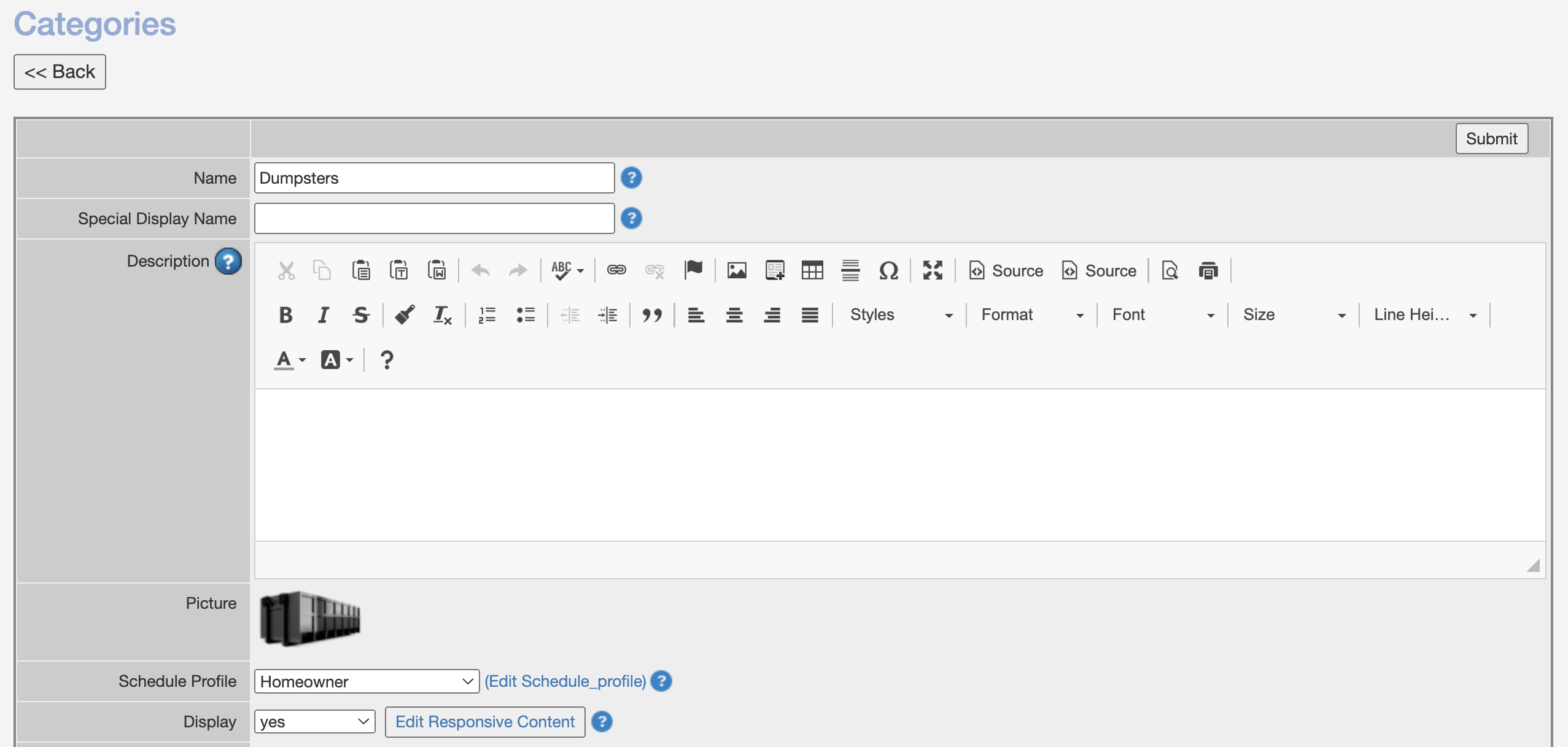
The following settings are customizable when editing a category. The "blue question mark" contains additional information when hovered over. Some settings have been omitted that are either deprecated or not relevant to DRS users.
- Name - Sets the name for a category and changes the website link.
- Special Display Name - Allows HTML code and changes the category's display name on your website without affecting the link.
- Description - Additional text that appears below the category name on your website.
- Picture - Changes the category's picture in the Store and Control Panel.
- Schedule Profile - Determines the default scheduling and price rules that items assigned to this category use.
- Display:
- Yes - Category will display on the Website and Control Panel.
- No - Category will not display.
- Web Only - Category only appears on the Website.
- Admin Only - Category only appears on the Control Panel.
- Taxable - Determines if items in this category are taxable by default.
- Meta Info - Section to designate SEO content.
- Parent Category - Creates a hierarchy of categories. The category you're editing will be nested underneath the selected "Parent Category"